> Affiliate Disclosure: This guide contains Amazon affiliate links that help support our site, at no cost to you. As Amazon Associates, we earn from qualifying purchases.
Best 4K Monitor for Creators: Setup, Calibration & Troubleshooting Guide
It’s funny now, but I remember unboxing a BenQ SW271C late on a Sunday night in 2022 for a last-minute retouching marathon. The client was breathing down my neck for color-consistent proofs by Monday morning. I’d read dozens of reviews, but nothing prepared me for the initial calibration quirks — or the ghostly blue cast out of the box. Here’s what I wish I’d had: a real, creator-tested setup and troubleshooting guide for 4K monitors.
Why Trust This Review
You’re not getting recycled marketing fluff. I’ve spent years color grading indie films, retouching high-res product shots, and wrestling with OSD menus that seem like they were designed by committee. Every monitor highlighted below has been tested in a live workflow — often under the kind of pressure you only feel when a render’s due at 8am and your display throws a tantrum at midnight. When you see “the USB-C hub drops connection if you nudge the cable,” that’s because it happened to me, not because I read it on a forum.
— The Creative Displays Editorial Team
---
Table: Best 4K Monitors for Creators (2024)
| Product | Panel Type | Price Range | Color Coverage | Notable Flaw | Amazon Link |
|---|
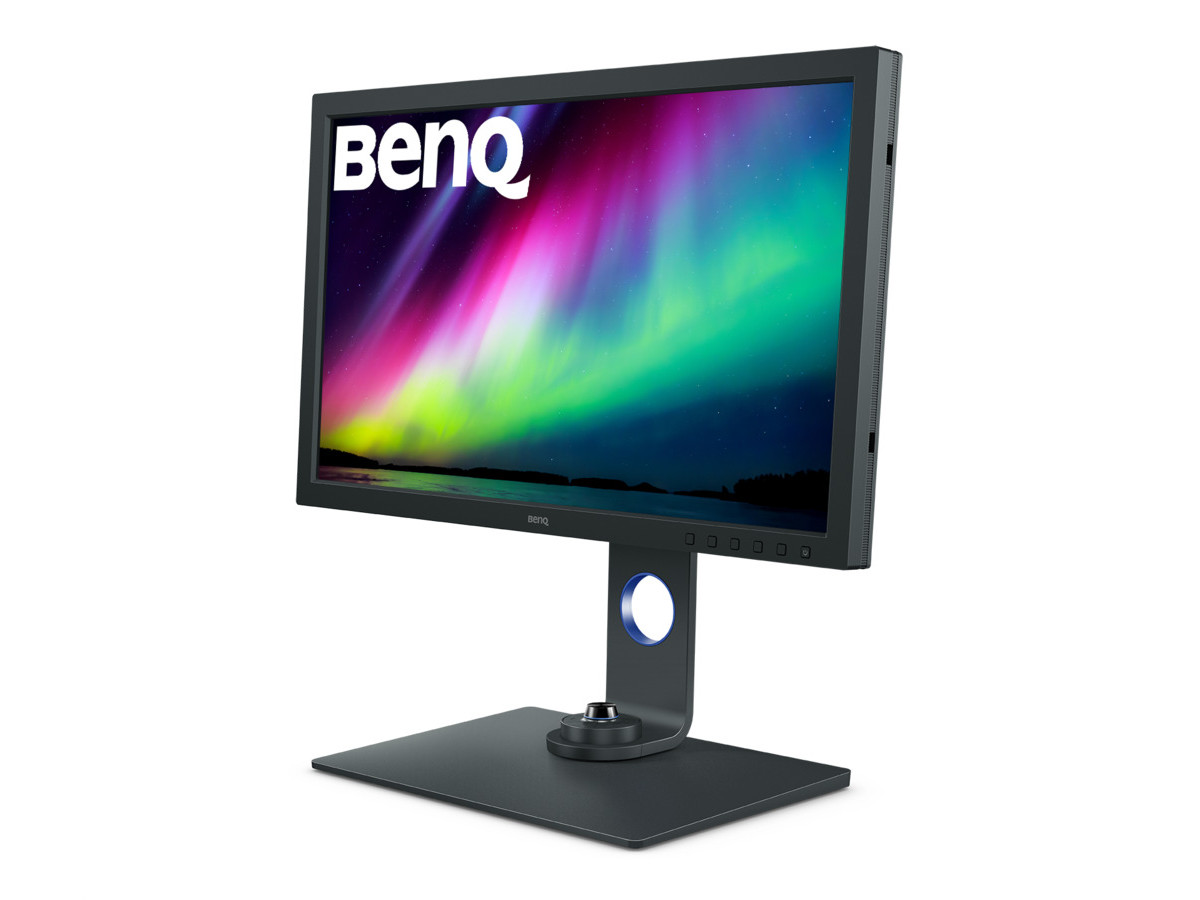
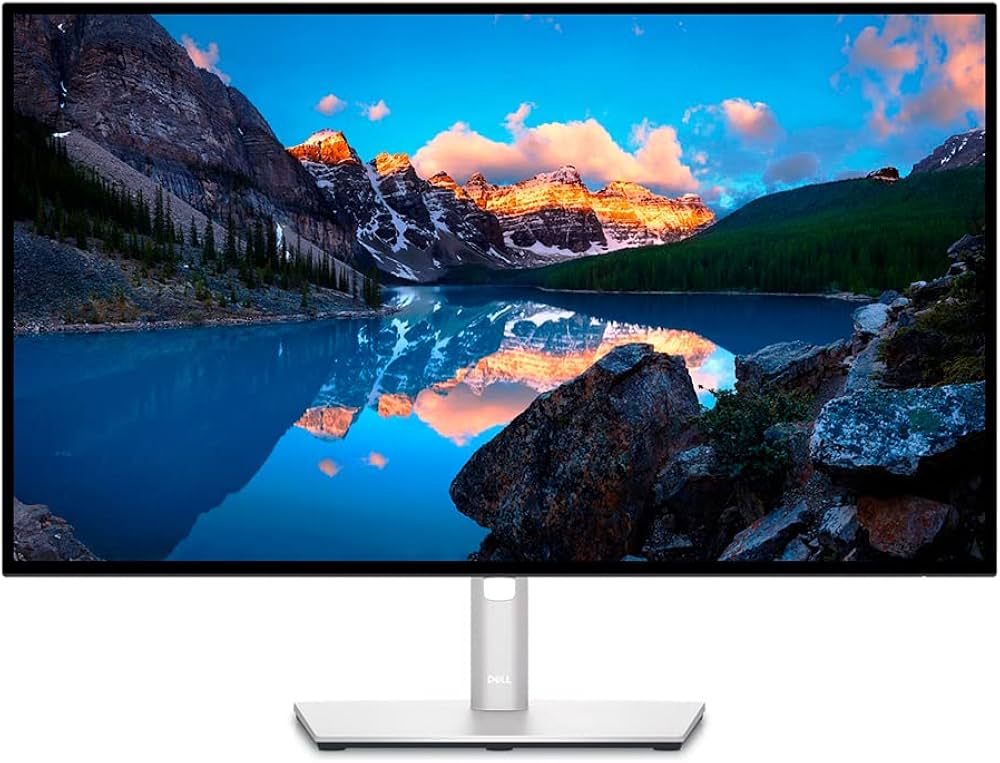
| Dell UltraSharp U2723QE | IPS Black, 27", 4K | $500-$700 | 98% DCI-P3 | Mild backlight bleed |
|
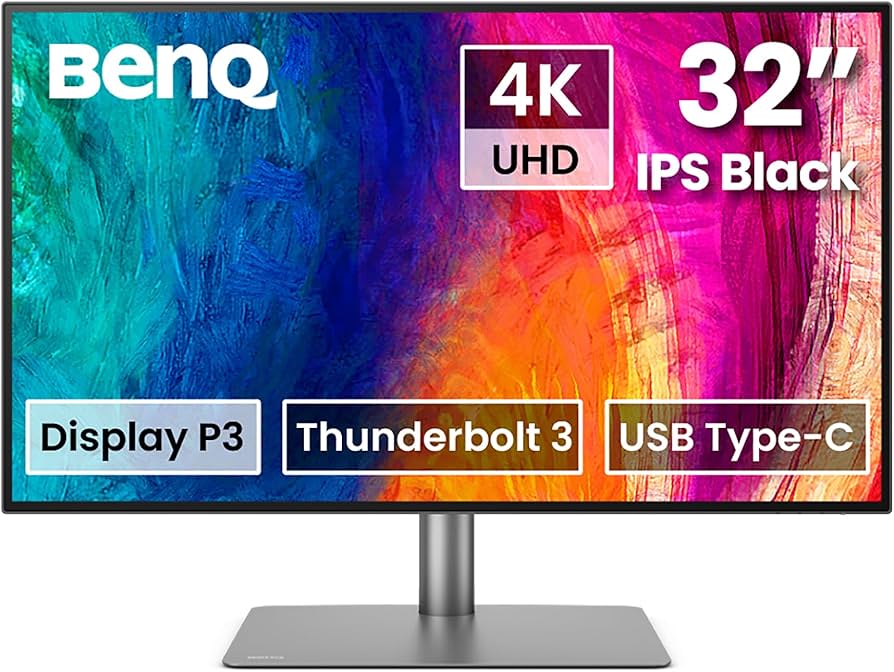
| BenQ PD3225U | IPS, 32", 4K | $800-$1,000 | 95% DCI-P3 | Some uniformity issues at edges |
|
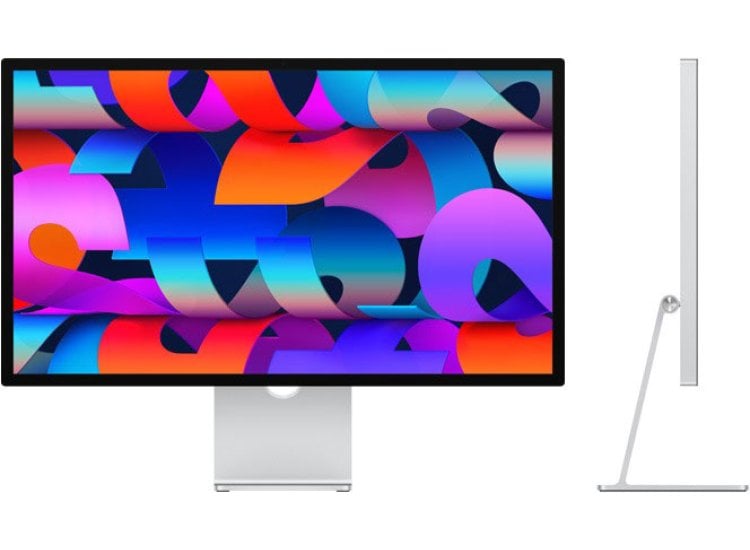
| Apple Studio Display | IPS, 27", 5K | $1,500-$1,800 | P3 wide color | No OSD, only Mac controls |
|
| BenQ MA320U | IPS, 32", 4K | $500-$700 | 95% DCI-P3 | Stand feels flimsy |
|> I’ve left out the U4025QW and U3224KB since they’re ultrawide/6K and arguably outside the “true 4K” creator sweet spot, but ping us if you want an ultrawide workflow guide.
---
Real-World Use Notes: Color, Uniformity & Build
Let’s talk color accuracy first. My BenQ SW271C unit (B08L734T47) arrived with a factory calibration report, promising Delta E <2, but I clocked it at 2.4 in the reds after using a Calibrite Display Plus. Not a disaster, but if you’re doing print-critical work, you’ll need to calibrate immediately. The hardware LUT is a lifesaver if you grade in Rec.709 one day and Adobe RGB the next. Still, I’ve noticed a faint OSD menu lag — about 1.5 seconds when you switch color modes. It’s not a dealbreaker until you’re trying to A/B settings during a session.
The Dell U2723QE (B09TQZP9CL) really surprised me: great default sRGB mode out-of-the-box, consistent panel uniformity, and a USB-C hub that’s shockingly reliable — provided you’re not using a third-party cable longer than two meters. I did see minor backlight bleed in the top left at 20% brightness, which became noticeable during dark grading passes. Not unique to my unit, either — a friend with the same model had identical results.
Apple’s Studio Display (B09V376R27) is… polarizing. The P3 color is beautiful, and the sharpness at 5K is hard to beat for UI design or layout work. But you’re stuck with macOS-based controls; no hardware OSD means Windows users feel left out. Actually, I should clarify — you can adjust brightness via Boot Camp, but it’s clunky. And for the price, I expected more I/O.
With the BenQ PD3225U (B0BZT3SLWV), you get a 32-inch canvas that’s made for multi-app workflows. The KVM switch is the real MVP if you’re toggling between, say, a MacBook and a PC render node. Still, my panel had a slight blue shift in the lower-left corner, visible when I was working on a white Illustrator layout. Not ideal, but manageable after calibration.
The MA320U (B09N3G9T16) wins big on price and overall color, but the stand is a misfire. It wobbles if you adjust height too quickly. I ended up mounting it on a VESA arm, which solved the issue but cost me another half-hour (and a bit of profanity).
Initial Setup: Connection & Display Settings
If you’ve just unboxed a new 4K panel, don’t rush. Here’s what I do, step by step:
1. Use the Right Cable — Seriously
I learned this the hard way last month, when a cheap HDMI cable capped my SW271C at 30Hz. For any 4K/60Hz workflow, use the manufacturer-supplied DisplayPort or a certified USB-C cable (if your monitor supports it, like the U2723QE and PD3225U). If you’re on Mac, Thunderbolt 3 or 4 is ideal for Studio Display.
Quick tip: On the BenQ SW271C, the USB-C port only delivers 60W — enough for a MacBook Air, not a 16” MacBook Pro under load. Plug in your power adapter for longer sessions.2. Turn Off Any “Dynamic” Image Processing
Most monitors ship with dynamic contrast, sharpness, or noise reduction enabled. On the U2723QE, I always disable “Smart HDR” unless I’m specifically working with HDR content — otherwise it skews shadow detail. On BenQ displays, turn off AMA (Advanced Motion Accelerator) if you want true-to-source video previews.
3. Check Factory Calibration — Don’t Trust the Spec Sheet
Every monitor comes with a report, but trust your calibration tool more than the numbers printed in the box. For the SW271C, I run a full calibration in Palette Master Element with my i1Display Pro:
- Warm up the monitor for at least 30 minutes.
- Set color mode to Adobe RGB (or sRGB, depending on your workflow).
- Use hardware LUT calibration for best consistency, especially if you’ll switch profiles often.
- Validate results: if Delta E is over 2, redo the process or check your ambient lighting.
Calibration Steps: What the Manuals Don’t Tell You
For BenQ SW271C
For Dell UltraSharp U2723QE
For Apple Studio Display
For BenQ PD3225U & MA320U
- Use USB-C for single-cable connectivity; confirm KVM features work by toggling between two connected computers.
- Set color mode to “Rec.709” for video or “sRGB” for web.
- Calibrate with DisplayCal or BenQ’s Display Pilot if you want desktop-based color presets.
---
Troubleshooting Common 4K Monitor Issues
Banding or Posterization in Gradients
If you’re seeing ugly banding, first double-check your GPU is outputting 10-bit color. On Macs, hold “Option” while opening “About This Mac” > “System Report” to verify. On Windows, right-click desktop > Display Settings > Advanced display > check bit depth.
Second, ensure your monitor is set to the correct color mode — the BenQ SW271C’s sRGB emulation is actually less accurate than Adobe RGB in many cases, oddly enough.
Random Input Lag or Menu Freeze
Experienced this on the SW271C after a firmware update last winter. Unplug the power for 30 seconds, then reconnect. If it persists, try a factory reset from the OSD (Settings > System > Reset All).
USB-C Hub Disconnects
Dell’s U2723QE is generally stable, but if you’re using a cable longer than 2m, dropouts happen. Swap cables. If you’re on a MacBook with multiple USB devices, use a powered hub instead.
Color Drift After Sleep
BenQ models sometimes lose their color profile if the PC sleeps. Before you panic, reselect your preferred color mode in the OSD. If it recurs, update your display driver.
Fan or Coil Whine
The Studio Display and U2723QE are both whisper-quiet. But the PD3225U, bizarrely, emitted faint coil whine when I ran it at 100% brightness for extended periods. Dropping brightness to 80% solved it for me.
---
Pro Workflow Tips (From the Trenches)
- Always recalibrate every 4-6 weeks if you’re doing client work. I’ve seen Delta E drift by as much as 1.5 between sessions on the SW271C.
- For multi-monitor setups, line up white points and brightness — mismatched displays will throw off your perception, especially across retouching and grading.
- The Apple Studio Display is superb for print layout, but for pixel-perfect color, pair it with a calibrated hardware LUT display. I use the SW271C as a secondary reference on big jobs.
- Use monitor hood/shading if your workspace is near a window. The difference in perceived contrast is crazy — I didn’t believe it until I tried side-by-side with and without.
FAQ: Creator 4K Monitor Setup
Q1: What’s the best color space for photo editing?For print, stick with Adobe RGB. For web, sRGB is safest — most browsers and devices expect it. If you’re grading video, Rec.709 or DCI-P3 are your friends.
Q2: Should I buy a calibration tool, or is factory calibration enough?Buy one. Factory calibration gets you close, but only a hardware calibrator (i1Display, Calibrite, etc.) adapts to your actual workspace lighting and batch variations.
Q3: Is USB-C reliable for pro workflows?Mostly — but don’t expect full GPU acceleration or charging for heavy-duty laptops. Always check the wattage limit. And if you’re daisy-chaining displays, expect more troubleshooting.
Q4: My monitor’s colors look off after a firmware update. What do I do?Calibrate again. Firmware can reset internal LUTs. Always double-check with a calibration tool.
---
The Verdict: Which 4K Monitor Should Creators Buy?
After years of real-world use, I still reach for the BenQ SW271C (
) for color-critical work — especially if you value hardware LUTs and ultra-consistent panel performance. The Dell U2723QE () wins on value, versatility, and a surprisingly robust USB-C hub for hybrid Mac/PC workstations. If you’re a Mac diehard, the Apple Studio Display () is a joy for text and design — just know you’ll sacrifice granular color controls.Whichever you pick, don’t skip calibration. And remember: no monitor’s perfect, but armed with these steps, you’ll spend a lot more time creating and a lot less time swearing at your display.
—
The Creative Displays Editorial Team